User Manual for applying Training Program
using HRMS
Login to your personal hrms account using the url: http://par.hrmsodisha.gov.in/index.htm. Then
put
your login credentials to enter into your control panel. Check the below image for reference.

After login you will be forwarded to your Home page.
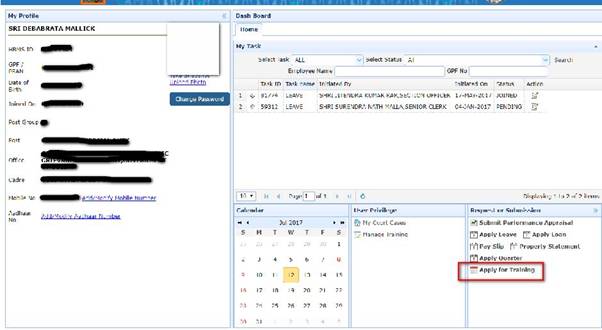
Click on Apply for Training Link on Home page bottom corner
Then click on “Apply for Training” link at the bottom corner.
Check the below image for reference.
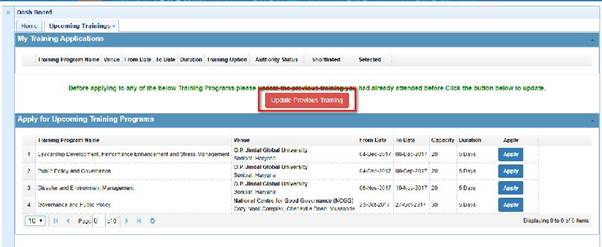
After clicking the link you will be forwarded to your Apply Training page, where you will get the list of available training
programs from different institutes. You can
apply from here.
Update your
Previous
Training List
But before applying for the program you need to update your Previous Training Program List. You can click on the button shown below in the image.
Once you click the button you will be redirected to a new window with the list of all previous training programs since 2013-2014. You
can
select
the program
over
there by
clicking the
checkboxes. If you did not participated any training program before you can simply choose the “None of the Above” option which is at the
very bottom, then hit
the
“Save & Close” button. After that you are ready to apply. Check the below image for reference.

Apply for the Training Program
Once you have updated the previous
training, you are ready
to
apply for the new training program
that are in the list.
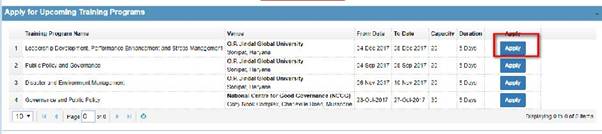
There is an “Apply” button
on each training program.
You can hit the button to go the apply Training page for that particular Training
Program.
Given
below the image for reference.
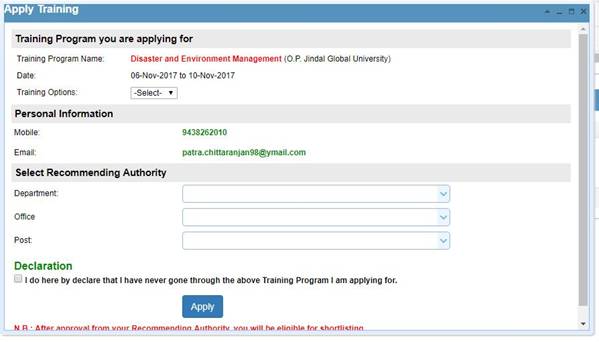
Apply Training Form:
Apply Training form
is pretty simple to fill out. Let’s go one by one so that it will be easy to understand.
1. Training Option: Please select the training option from the dropdown. There are three
options available: (i) Option 1 (Highest Priority) (ii) Option 2 (Medium Priority) (iii) Option 3
(Low Priority). Training option will be useful where you are applying
multiple training programs.
If you are applying for one training program then its better
to select “option1” as training
option.
If you are applying more than one Training
Programs then
you can select your options based on
your priority.
N.B: You can
apply maximum three
(3)
Training Programs.
2. Mobile: You have to add your mobile number, if you had not yet done that before. If your
mobile has already been
registered, then you don’t have to do anything.
3. Email: You have to add your email address, if you had not yet done that before. If your email has already been
registered, then you don’t have to do anything.
4. Select Recommending
Authority: This is very important part.
Select your Recommending Authority post not your post. We have observed
that many applications being applied to the same post as Recommending Authority.
 What to do? If you had already select
the
“Recommending Authority” as your post. Please go to your
Task
List on Home page and then hit “Action” button,
then from the Action
Dropdown select the “Forward” option and then hit Submit after that select your correct
Recommending
Authority and then
hit
apply and you
are
done.
What to do? If you had already select
the
“Recommending Authority” as your post. Please go to your
Task
List on Home page and then hit “Action” button,
then from the Action
Dropdown select the “Forward” option and then hit Submit after that select your correct
Recommending
Authority and then
hit
apply and you
are
done.
5. Declaration Checkbox: You have to check this box and then
hit
apply and you
are
done.
After submission of the program, there will be a list of training applied
at the top of the page, where you can
track your status.
In the next page you
will find the screenshot for Training
Apply.
Apply Training Program Form:
My Training Applications:
You will view your training applications in
the
top of the same page where you are applying for training. The list will have
all the status. Basically the Recommending Authority Status, whether (Approved/Declined/Forwarded), once you are being approved by the Recommending Authority,
you
will be eligible for short-listing. There are two more columns “Shortlisted” it will show “Yes” if you are else “No”. Once you are shortlisted, then the final column “Selected” will be visible, “yes” if
you
are selected for final Training Program. “No” if you are not selected for the Training Program.
 Given below the image for reference.
The above explanation should be enough
for applying any of the Training
Program.
Recommending Authority
Panel
You have to login to your HRMS account as usual. If you never been logged in to your account, then
follow the top section
of
this manual to log in.
After that in your “My Task” section, you will see the list of applicants applied
for the training program. Then you have to hit the action button icon which is the last column of the list. Given the
 screenshot below for reference.
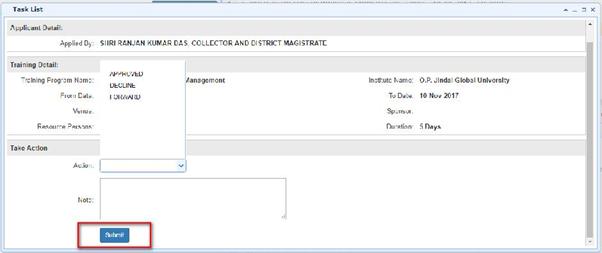
After that there will be a new window for the action. In this window there will be Training Program
details along
with the applicant detail.
You have to take the action
here.
From the Action Dropdown, there are 3 options available:
a. Approve: if you want to allow the applicant for the Training
program.
b. Decline: If you don’t want to allow the applicant for the Training Program.
c. Forward: If you
want to forward
this to your higher authority for approval.
Select the appropriate option and hit “Submit” and then you are done. The application will be
vanished from your task list. Given
the
below image for reference.